Image History & Gallery - Managing Your Generated Images
Learn how to view, organize, and manage your generated images in Gemini Photo. Access your image history, search, and organize your creations.
Image History & Gallery
All images you generate with Gemini Photo are automatically saved to your account. This guide shows you how to access, view, and manage your image history and gallery.
What is Image History?
Image history is your personal collection of all images you've generated, including:
- Generated Images: All images created with text-to-image
- Edited Images: All images modified with image editing
- Metadata: Prompts used, generation date, and settings
- Organization: Easy access and management
Automatic Saving
What Gets Saved:
- Every generated image automatically
- Original prompts used
- Generation date and time
- Image metadata
- Edit history
Benefits:
- Never lose your creations
- Easy to find past work
- Reference successful prompts
- Track your progress
Accessing Your Image History
How to View History
1. Navigate to Home
- Go to your account home page
- Access image history section
- View your gallery
2. Browse Your Images
- Scroll through generated images
- View in grid or list format
- See thumbnails and details
3. View Image Details
- Click on any image
- See full-size view
- View prompt used
- Check generation date
History Interface
Main Features:
- Image grid display
- Search functionality
- Filter options
- Sort capabilities
- Image details view
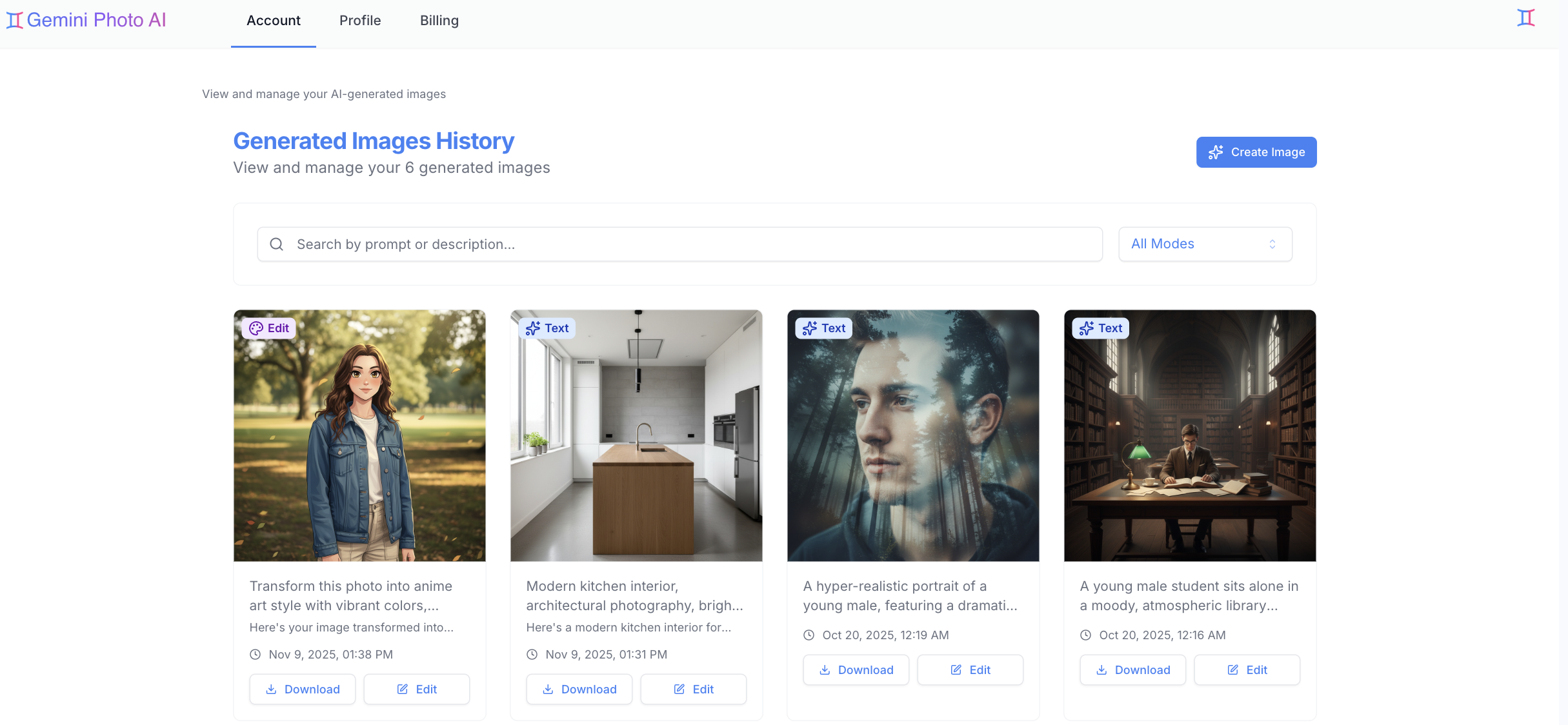
Viewing Your Generated Images
Grid View
What You See:
- Thumbnail previews
- Quick image overview
- Easy browsing
- Visual navigation
Benefits:
- Fast visual scanning
- See many images at once
- Quick identification
- Efficient browsing
Detail View
What You See:
- Full-size image
- Complete prompt text
- Generation information
- Download options
Benefits:
- See full quality
- Review prompts used
- Check details
- Access options
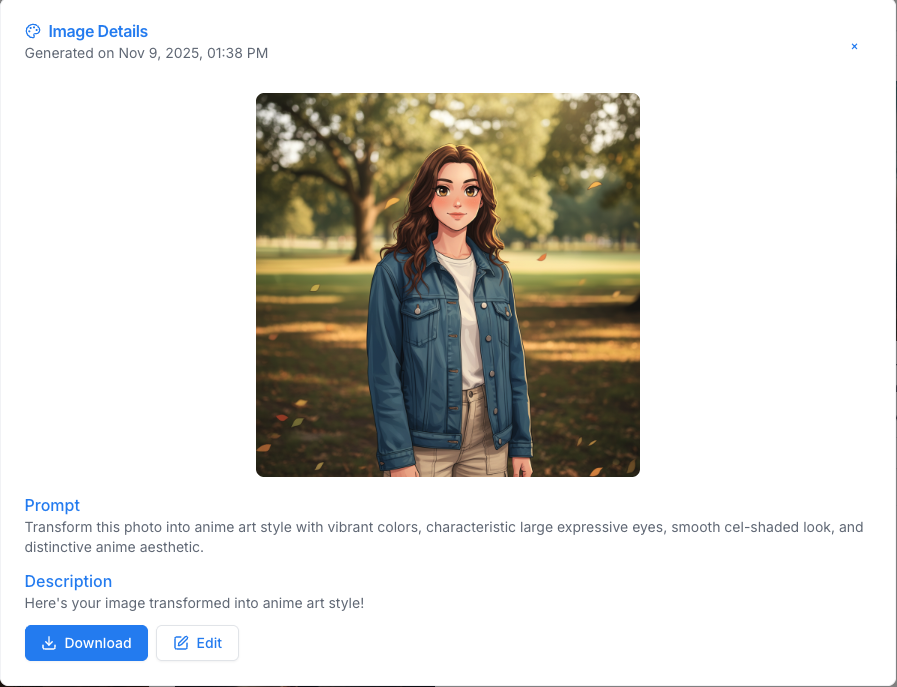
Organizing Your Images
By Date
Chronological Organization:
- Most recent first
- Easy to find latest work
- Track progress over time
- Time-based browsing
By Project
Project-Based Organization:
- Group related images
- Organize by client/work
- Maintain project folders
- Track project progress
Tips:
- Use consistent naming
- Group related images
- Maintain project structure
- Easy project retrieval
By Type
Category Organization:
- Text-to-image results
- Edited images
- Style categories
- Purpose-based groups
Searching Through History
Search Functionality
Search By:
- Prompt keywords
- Generation date
- Image type
- Tags or categories
How to Search
1. Enter Keywords
- Type in search bar
- Use relevant terms
- Search prompts or metadata
2. Filter Results
- Apply date filters
- Filter by type
- Use category filters
3. Review Matches
- Browse search results
- Click to view details
- Access found images
Search Tips
- Use specific keywords
- Try different terms
- Combine with filters
- Search prompt text
Image Metadata and Details
What Information is Saved
For Each Image:
- Full prompt text
- Generation date and time
- Image mode (text-to-image or editing)
- Image URL
- File information
Viewing Details
How to Access:
- Click on image
- View detail page
- See all metadata
- Check generation info
Benefits:
- Reference successful prompts
- Learn from past work
- Track generation patterns
- Understand what works
Managing Your Gallery
Image Actions
Available Actions:
- View full size
- Download image
- Delete image
- Share image
- View details
Downloading Images
How to Download:
- Click on image
- View detail page
- Click download button
- Save to your device
Download Options:
- High-resolution version
- Original quality
- Suitable for various uses
- Professional-grade output
Deleting Images
How to Delete:
- Select image
- Choose delete option
- Confirm deletion
- Image removed from gallery
Considerations:
- Deletion is permanent
- Cannot be undone
- Download before deleting if needed
- Manage storage carefully
Best Practices for Organization
Naming Conventions
Tips:
- Use descriptive names
- Include date if helpful
- Add project identifiers
- Maintain consistency
Regular Maintenance
Routine Tasks:
- Review old images
- Delete unwanted images
- Organize by project
- Maintain structure
Backup Strategy
Recommendations:
- Download important images
- Keep local backups
- Organize downloaded files
- Maintain archives
Privacy and Security
Your Images
Privacy:
- Images are private to your account
- Not publicly accessible
- Secure storage
- Account-protected
Data Management
Control:
- You own your images
- Full access to your data
- Can delete anytime
- Export when needed
Troubleshooting
Can't Find an Image?
Solutions:
- Use search function
- Check date filters
- Browse by category
- Verify account access
Images Not Saving?
Solutions:
- Check account status
- Verify generation completed
- Refresh page
- Contact support if needed
Tips for Efficient Management
Organization Tips
1. Regular Cleanup
- Remove unwanted images
- Keep gallery organized
- Maintain structure
2. Use Search
- Find images quickly
- Use keywords effectively
- Combine with filters
3. Download Important Work
- Keep local copies
- Backup valuable images
- Maintain archives
4. Organize by Project
- Group related images
- Maintain project structure
- Easy retrieval
Next Steps
Keep your image gallery organized and easily accessible for efficient workflow and creative projects!