AI Image Editing Overview - Transform Photos with Text Prompts
Learn how AI image editing works in Gemini Photo. Upload photos and transform them using natural language prompts for professional results.
AI Image Editing Overview
AI image editing allows you to transform existing photos using simple text prompts. Upload your images and describe the changes you want—Gemini Photo's Nano Banana Model will apply your edits automatically.
What is AI Image Editing?
AI image editing uses artificial intelligence to modify existing images based on text descriptions. Instead of manual editing tools, you describe what you want changed, and the AI applies those modifications.
How It Works
- Upload Your Image: Provide the photo you want to edit
- Describe Changes: Enter a text prompt describing your desired edits
- AI Processing: The model analyzes your image and prompt
- Result: Receive your edited image with the requested changes
Uploading Images
File Upload Method
Supported Formats:
- JPEG (.jpg, .jpeg)
- PNG (.png)
- Other common image formats
File Size Recommendations:
- Optimal: 1-5 MB
- Maximum: Check current limits
- Larger files may take longer to process
How to Upload:
- Click the upload area or drag and drop
- Select your image file
- Wait for upload to complete
- Image preview appears
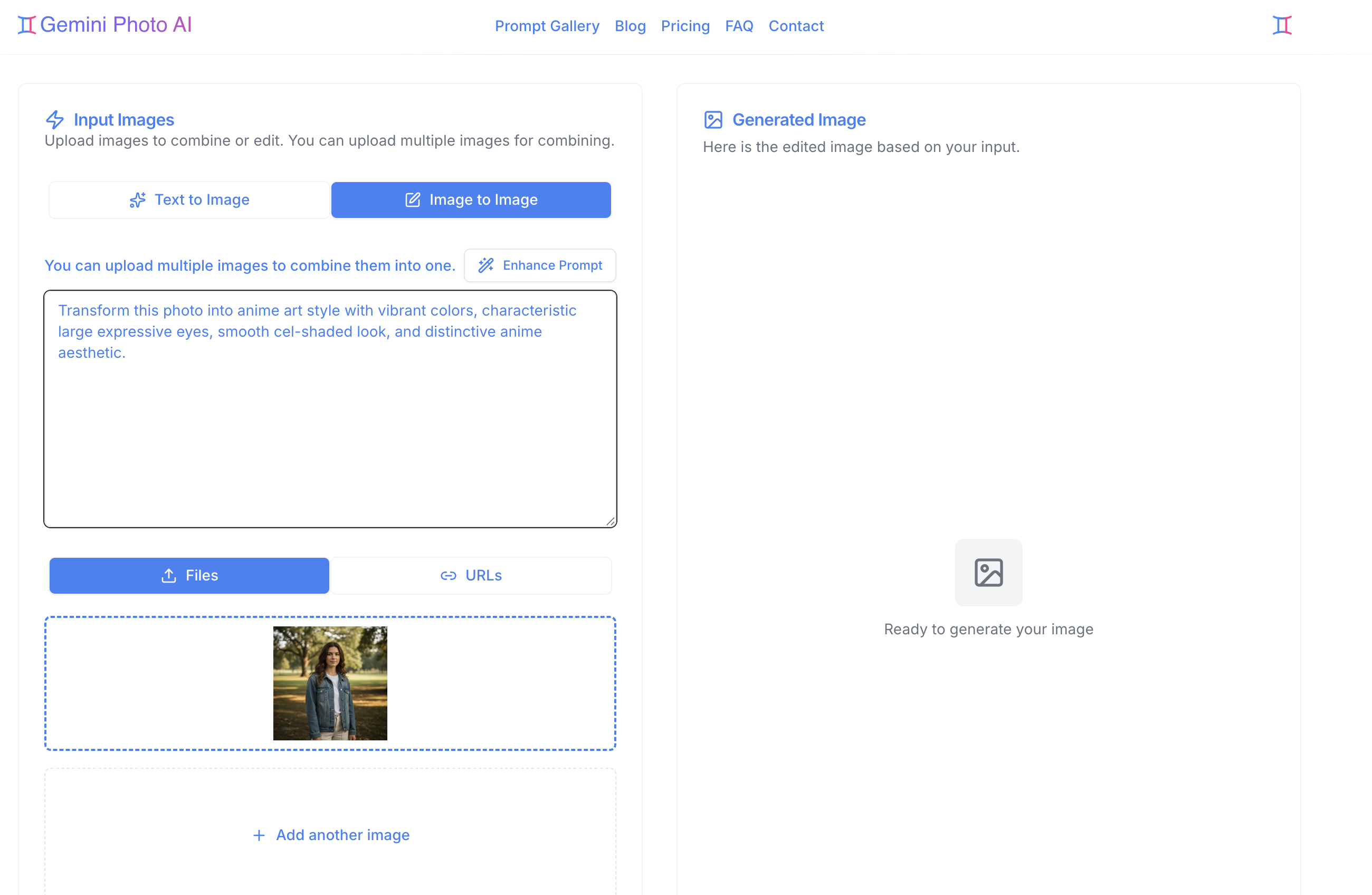
URL Input Method
Instead of uploading files, you can provide image URLs:
URL Requirements:
- Must be publicly accessible
- Should be direct image links
- Supported formats: JPEG, PNG
How to Use URLs:
- Switch to URL input mode
- Paste the image URL
- Verify the image loads
- Proceed with editing
When to Use URLs:
- Images already hosted online
- Quick testing without uploads
- Working with external images
- Avoiding file size limits
Learn more about choosing between upload and URL.
Single vs Dual Image Editing
Single Image Editing
Edit one image at a time:
Use Cases:
- Background removal
- Object addition/removal
- Style changes
- Color adjustments
- Lighting modifications
Example:
Upload: Portrait photo
Prompt: "Remove the background and replace with a beach scene"
Dual Image Editing
Upload two images for combined editing:
Use Cases:
- Style transfer between images
- Combining elements from both
- Merging compositions
- Applying one image's style to another
Example:
Upload: Two images
Prompt: "Apply the artistic style of the first image to the subject of the second"
Learn more about dual image editing techniques.
Interface Overview
Main Components
Mode Selector
- Switch to "Image Editing" mode
- Toggle between text-to-image and editing
Image Upload Area
- Drag and drop or click to upload
- Supports single or dual image upload
- URL input option available
Prompt Input
- Text field for describing edits
- Multi-line support for detailed descriptions
- Prompt enhancer available
Generate Button
- Starts the editing process
- Shows progress during processing
Result Preview
- Displays edited image
- Compare with original
- Download and save options
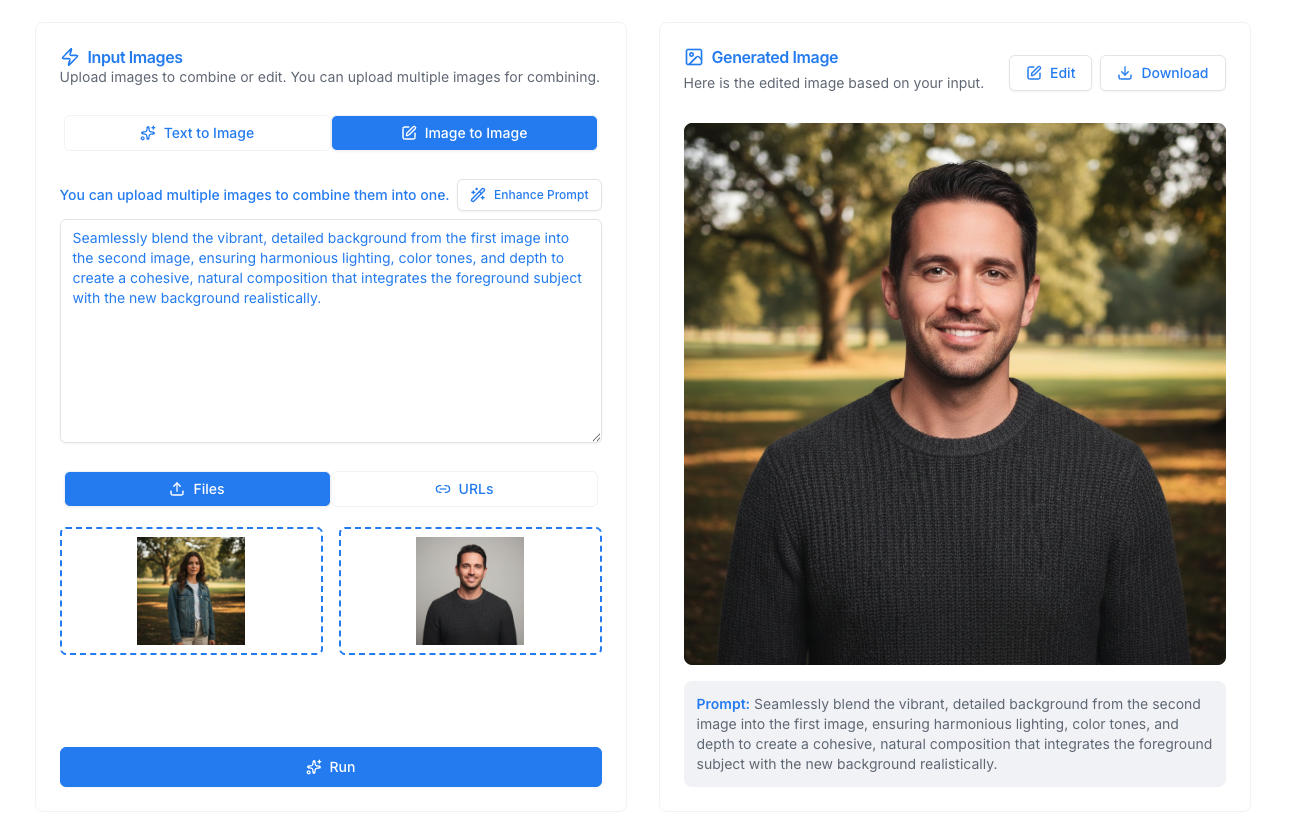
Upload Interface
Single Image:
- One upload area
- Clear preview of selected image
- Easy to replace or remove
Dual Image:
- Two upload areas
- Both images visible
- Can upload independently
Supported Formats
Image Formats
Primary Formats:
- JPEG (.jpg, .jpeg) - Recommended
- PNG (.png) - Supported
Format Recommendations:
- JPEG for images (smaller file size)
- PNG for graphics (transparency support)
File Size Considerations
Optimal Sizes:
- 1-5 MB for best performance
- Larger files may process slower
- Very large files may need resizing
Tips:
- Compress images before upload if needed
- Use appropriate format for your use case
- Consider URL input for large files
Common Editing Tasks
Background Modifications
- Remove backgrounds
- Replace with new scenes
- Blur or enhance backgrounds
- Change background colors
Object Manipulation
- Remove unwanted objects
- Add new elements
- Modify existing objects
- Reposition items
Style Transformations
- Apply artistic styles
- Change color schemes
- Adjust lighting
- Modify textures
Enhancement Tasks
- Improve image quality
- Enhance details
- Adjust colors
- Fix lighting issues
Learn more about common editing tasks.
Best Practices
Image Preparation
Before Uploading:
- Ensure good image quality
- Use appropriate file format
- Consider file size
- Have clear editing goals
Writing Edit Prompts
Be Specific:
- Describe exactly what to change
- Mention what to keep
- Include style preferences
- Specify details clearly
Example Good Prompt:
Remove the person in the background, keep the main subject and foreground, maintain natural lighting
Workflow Tips
- Start with clear goals
- Use specific prompts
- Review results carefully
- Iterate if needed
- Save successful edits
Understanding Results
What to Expect
Processing Time:
- Typically 15-30 seconds
- Depends on image complexity
- May vary with server load
Result Quality:
- High-quality edited images
- Maintains original quality
- Professional-grade output
- Suitable for most uses
Reviewing Edits
Check:
- Did it make the requested changes?
- Is the quality maintained?
- Are there unwanted artifacts?
- Does it match your vision?
If Not Satisfied:
- Refine your prompt
- Try different wording
- Regenerate the edit
- Make manual adjustments if needed
Use Cases
Personal Photo Enhancement
- Improve vacation photos
- Remove unwanted elements
- Enhance portraits
- Fix lighting issues
Professional Applications
- Product photography editing
- Marketing material creation
- Social media content
- Presentation graphics
Creative Projects
- Artistic transformations
- Style experiments
- Concept development
- Creative exploration
Troubleshooting
Upload Issues
Problem: Image won't upload Solutions:
- Check file format
- Verify file size
- Try different browser
- Use URL input instead
Poor Results
Problem: Edit doesn't match expectations Solutions:
- Be more specific in prompt
- Try different wording
- Use prompt enhancer
- Regenerate the edit
Processing Errors
Problem: Generation fails Solutions:
- Check internet connection
- Verify image format
- Try simpler prompt
- Contact support if persistent
Next Steps
- Learn common editing tasks
- Explore dual image editing
- Understand upload vs URL
- See editing examples
- Master editing workflow
Start transforming your photos with AI-powered editing today!