AI Image Detector - Verify Image Authenticity
Learn how to use Gemini Photo's AI Image Detector to identify if images are AI-generated or human-created. Get instant, accurate results with confidence scores.
AI Image Detector Overview
The AI Image Detector is a powerful tool that analyzes images to determine whether they were created by artificial intelligence or captured by humans. Using advanced detection technology, it provides instant results with confidence scores to help you verify image authenticity.
What is AI Image Detection?
AI image detection uses machine learning algorithms trained to identify patterns and characteristics that distinguish AI-generated images from human-created photographs. This technology helps verify authenticity, detect deepfakes, and ensure image credibility.
How It Works
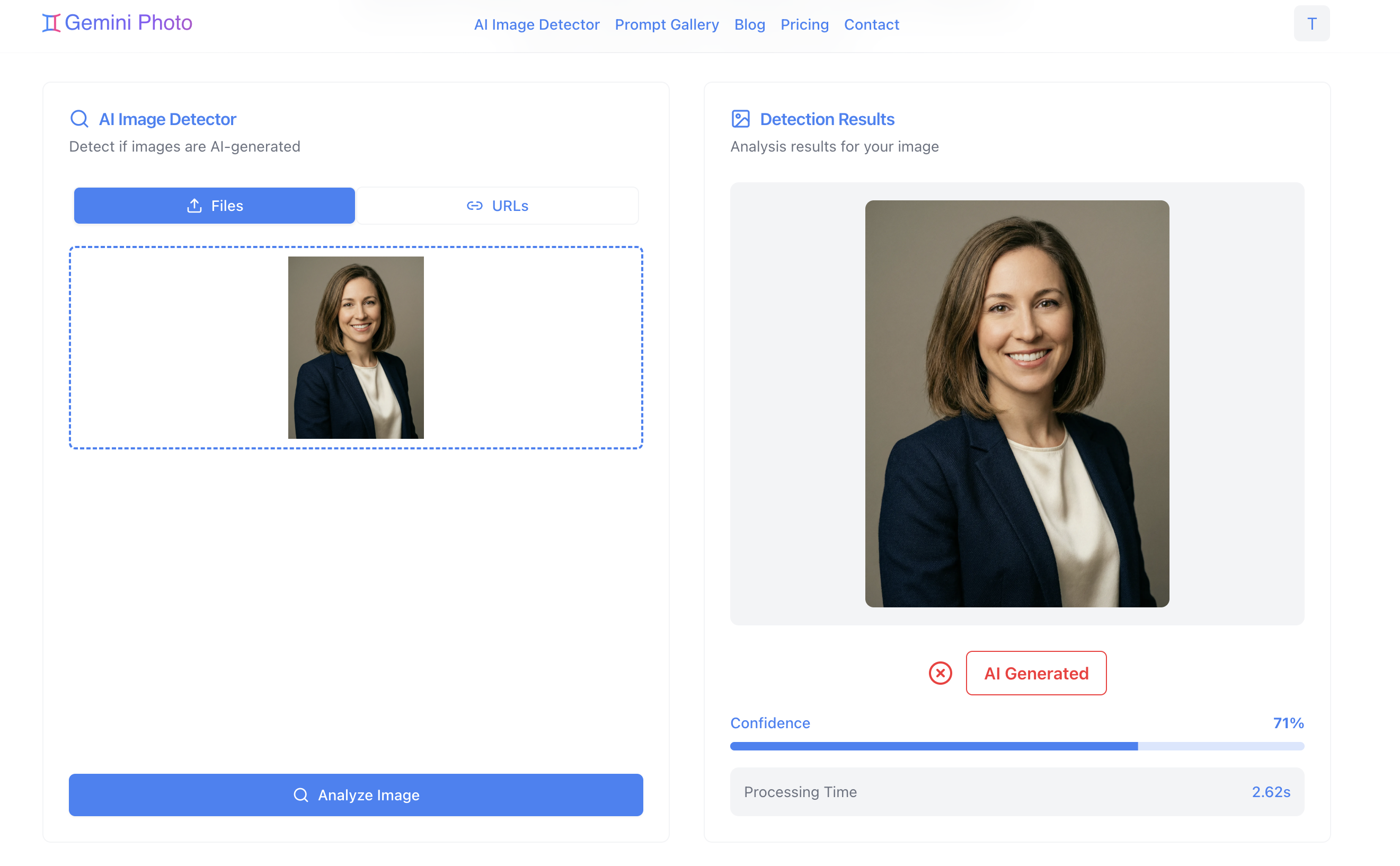
- Upload or Provide URL: Submit an image file or paste an image URL
- AI Analysis: Advanced algorithms analyze the image for AI generation markers
- Detection Results: Receive a verdict with confidence score
- Detailed Report: View processing time and detailed analysis
Why Use AI Image Detection?
Verify Authenticity
- Content Verification: Confirm if images are original or AI-generated
- Deepfake Detection: Identify manipulated or synthetic media
- Trust Verification: Ensure image credibility for professional use
- Fact-Checking: Verify images before sharing or publishing
Professional Use Cases
- Journalism: Verify source images before publication
- Legal: Authenticate evidence images
- Marketing: Ensure original content authenticity
- Social Media: Verify user-generated content
- Research: Validate image sources in academic work
Getting Started
Accessing the Detector
- Navigate to the AI Image Detector page
- The interface loads automatically
- Choose your input method (file upload or URL)
Subscription Requirements
The AI Image Detector requires an active subscription to use. If you don't have a subscription:
- You'll see a subscription modal when attempting to analyze
- Click to view subscription options
- Choose a plan that fits your needs
Uploading Images
File Upload Method
Supported Formats:
- JPEG (.jpg, .jpeg)
- PNG (.png)
- WebP (.webp)
- Other common image formats
File Size Recommendations:
- Optimal: Under 10 MB
- Maximum: Check current limits
- Larger files may take longer to process
How to Upload:
- Click the "Files" tab in the upload section
- Click the upload area or drag and drop your image
- Wait for the image preview to appear
- Click "Analyze Image" to start detection
URL Input Method
Instead of uploading files, you can provide image URLs:
URL Requirements:
- Must be publicly accessible
- Should be direct image links
- Maximum length: 3000 characters
- Supported formats: JPEG, PNG, WebP
How to Use URLs:
- Click the "URLs" tab in the upload section
- Paste the image URL into the input field
- Verify the image preview loads correctly
- Click "Analyze Image" to start detection
When to Use URLs:
- Images already hosted online
- Quick testing without uploads
- Working with external images
- Avoiding file size limits
Understanding Results
Detection Verdict
The detector provides one of two verdicts:
AI Generated
- The image shows strong indicators of AI generation
- Confidence score indicates likelihood
- May include artifacts or patterns typical of AI models
Human Created
- The image appears to be a natural photograph
- No significant AI generation markers detected
- Likely captured by camera or traditional methods
Confidence Score
The confidence score indicates how certain the detection is:
- 90-100%: Very high confidence in the verdict
- 70-89%: High confidence, reliable result
- 50-69%: Moderate confidence, consider additional verification
- Below 50%: Lower confidence, may require manual review
Understanding Confidence:
- Higher scores indicate stronger detection signals
- Lower scores may indicate ambiguous images
- Consider the context and use case when interpreting results
Processing Time
The detector shows how long the analysis took:
- Typical Range: 1-5 seconds
- Fast Analysis: Usually under 3 seconds
- Complex Images: May take up to 10 seconds
Processing time depends on:
- Image size and complexity
- Server load
- Network conditions
Reading the Results Display
Result Components
Verdict Badge
- Color-coded indicator (red for AI, green for human)
- Clear visual representation
- Icon indicates the result type
Confidence Percentage
- Numerical score displayed prominently
- Visual progress bar for quick reference
- Percentage format for easy understanding
Processing Time
- Shows analysis duration
- Helps understand performance
- Useful for tracking response times
Image Preview
- Shows the analyzed image
- Full-size display
- Easy to reference during review
Best Practices
Getting Accurate Results
- Use High-Quality Images: Clear, uncompressed images work best
- Avoid Heavily Edited Images: Excessive editing may affect detection
- Check Multiple Angles: Analyze different versions if uncertain
- Consider Context: Use results as one factor in verification
Interpreting Results
- High Confidence (90%+): Very reliable, strong indicators present
- Medium Confidence (70-89%): Reliable but consider context
- Lower Confidence (<70%): May require additional verification methods
When to Verify Manually
Consider manual verification when:
- Confidence score is below 70%
- Image has been heavily edited or compressed
- Critical decision depends on authenticity
- Multiple verification methods are available
Limitations and Considerations
Detection Accuracy
- Not 100% Guaranteed: Detection is probabilistic, not absolute
- False Positives/Negatives: Possible but rare with high confidence scores
- Evolving Technology: AI models improve constantly
- Edge Cases: Some images may be ambiguous
What Affects Detection
Image Quality:
- High-quality images detect more accurately
- Heavily compressed images may affect results
- Low resolution can impact detection
Image Characteristics:
- Highly edited images may confuse detection
- Mixed content (AI + human elements) can be challenging
- Very new AI models may not be fully detected
Technical Factors:
- Image format and compression
- File size and resolution
- Processing artifacts
Use Cases and Examples
Content Verification
Scenario: Verifying user-submitted content
- Upload the image to detector
- Check confidence score
- Use result to inform moderation decision
Professional Authentication
Scenario: Verifying images for publication
- Analyze source images
- Review confidence scores
- Document results for records
Educational Purposes
Scenario: Teaching about AI-generated content
- Compare AI vs human images
- Understand detection patterns
- Learn about image authenticity
Troubleshooting
Common Issues
"No active subscription" Error
- Ensure you have an active subscription
- Check subscription status in account settings
- Contact support if subscription is active but error persists
Image Won't Upload
- Check file format is supported
- Verify file size is within limits
- Try a different image or use URL method
URL Not Working
- Ensure URL is publicly accessible
- Check URL length (max 3000 characters)
- Verify it's a direct image link
Low Confidence Scores
- Try a higher quality version of the image
- Check if image has been heavily edited
- Consider manual verification for critical cases
Getting Help
If you encounter issues:
- Check the Technical FAQ
- Review Troubleshooting Guide
- Contact support for assistance
Next Steps
Now that you understand AI image detection:
- Learn about AI image generation
- Explore image editing features
- Check out advanced techniques
- Review troubleshooting tips
Start verifying image authenticity today!